Asset Information
From the Assets List, tap Asset Details to view the asset card or edit any of the asset's details. Remember to Save if you make any changes.
The asset card will display the following information:
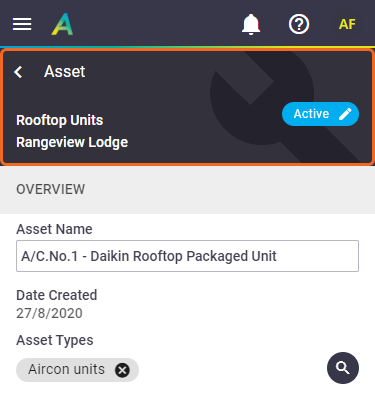
Asset Header
|
 |
||||||||
|
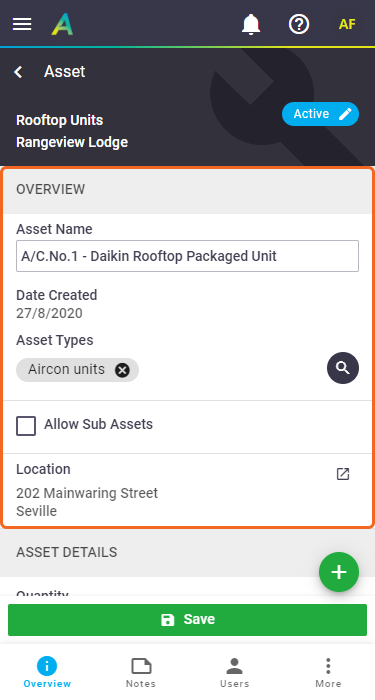
Overview
|
 |
||||||||||||
|
 (magnifier) to add an asset type to this asset, or tap x if you need to remove an asset type from this asset.
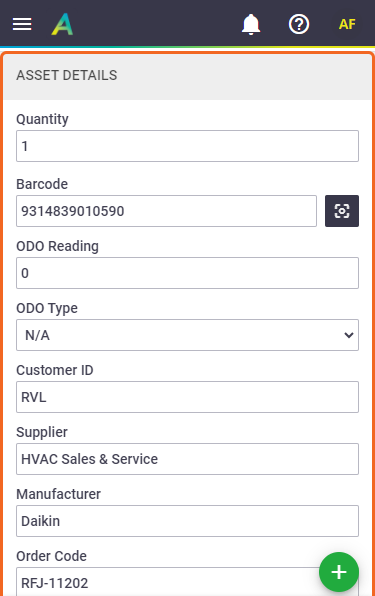
Asset Details
|
 |
||||||||||||||||||||||||||
|
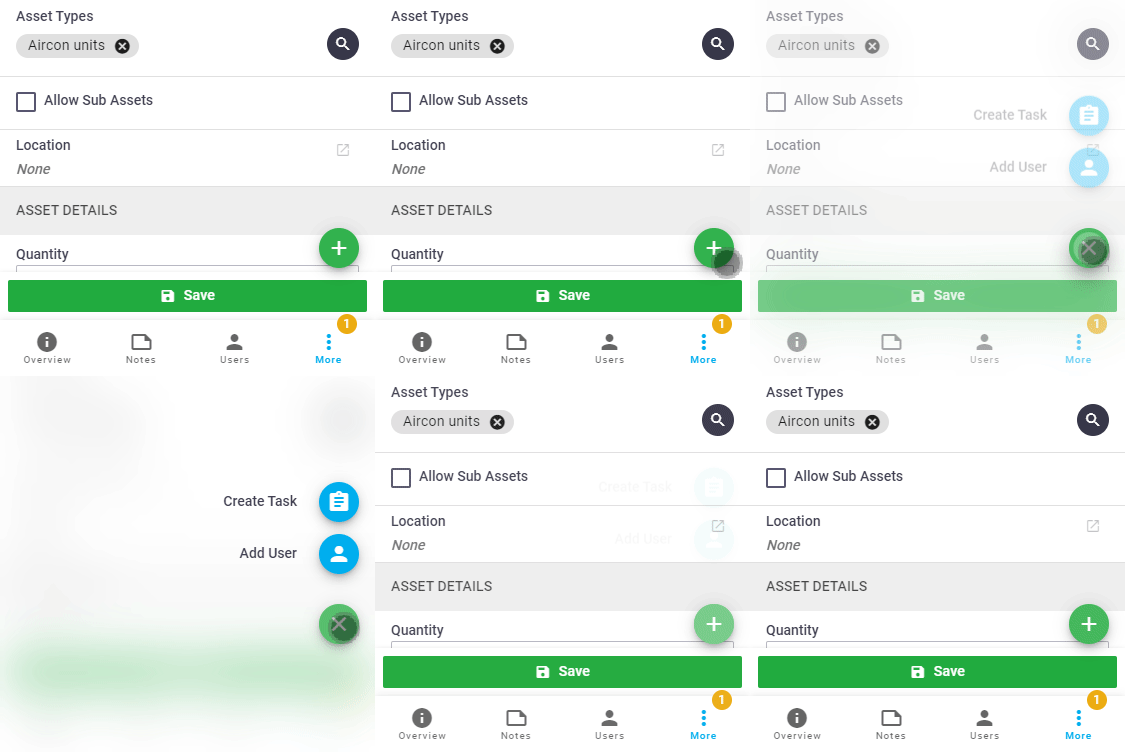
Asset Shortcuts
|
Tap the
|
 |
||||||
|
 (green plus button) to:
Other tabs
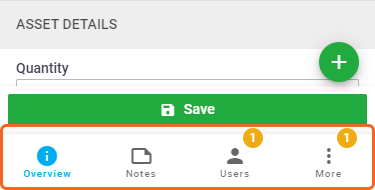
All tabs except for Overview will have a counter on them if there is information contained within them, e.g. if a note has been added or a user assigned to the asset. |
 |
|
Notes
|
Displays notes attached to the asset/add a note. Notes added to the asset when used on a task will also appear here with a reference and link to the task it was added from. |
 |
|
Users
|
View assigned users. See Assign Assets to Users. Tap the |
 |
|
 (blue pencil) to assign/unassign users to this asset.
More
|
Tap More to access the following options:
|
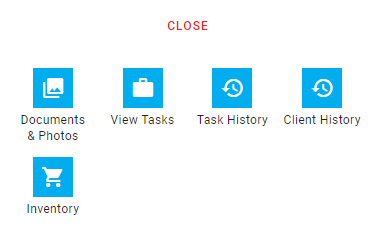 |
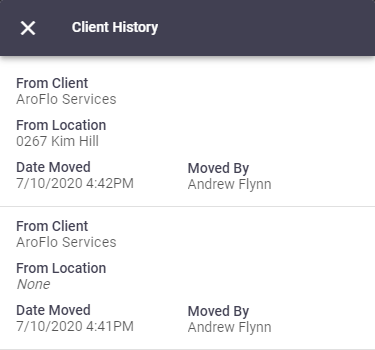
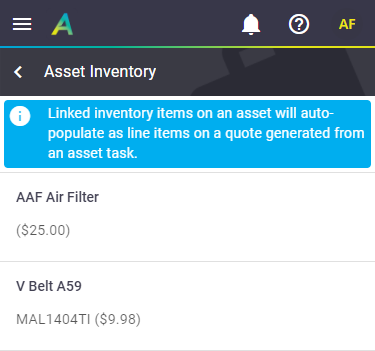
||||||||||||
|
Archive an asset
|
You can archive an asset as follows (depending on your user access permissions):
View archived assets To view archived assets, see Assets List - Filter. |
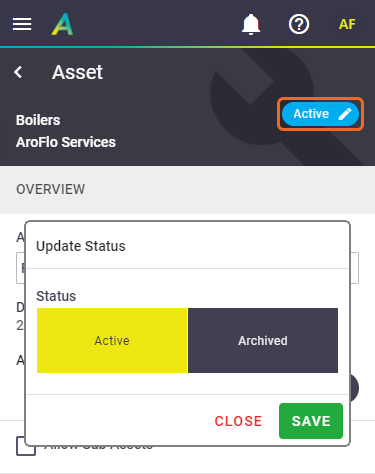 |
|